
Discord Rich Presence
Show what you're watching on TypeType as your Discord status: title, channel, and a link back to the video. It uses a small desktop companion, TypeType RPC, that talks to Discord over its local connection, the same mechanism Spotify or a game uses.
What it needs
- A TypeType account. Guests can't create a presence key.
- Discord desktop, or a compatible client such as Vesktop, running on the same machine.
- The TypeType RPC app installed.
Create a presence key
- Open Settings, then API.
- Under Presence access, name the key so you can tell it apart later, then Create key.
- Copy the key. It starts with
ttp1_, and this is the only time you'll see it, TypeType only stores its hash.
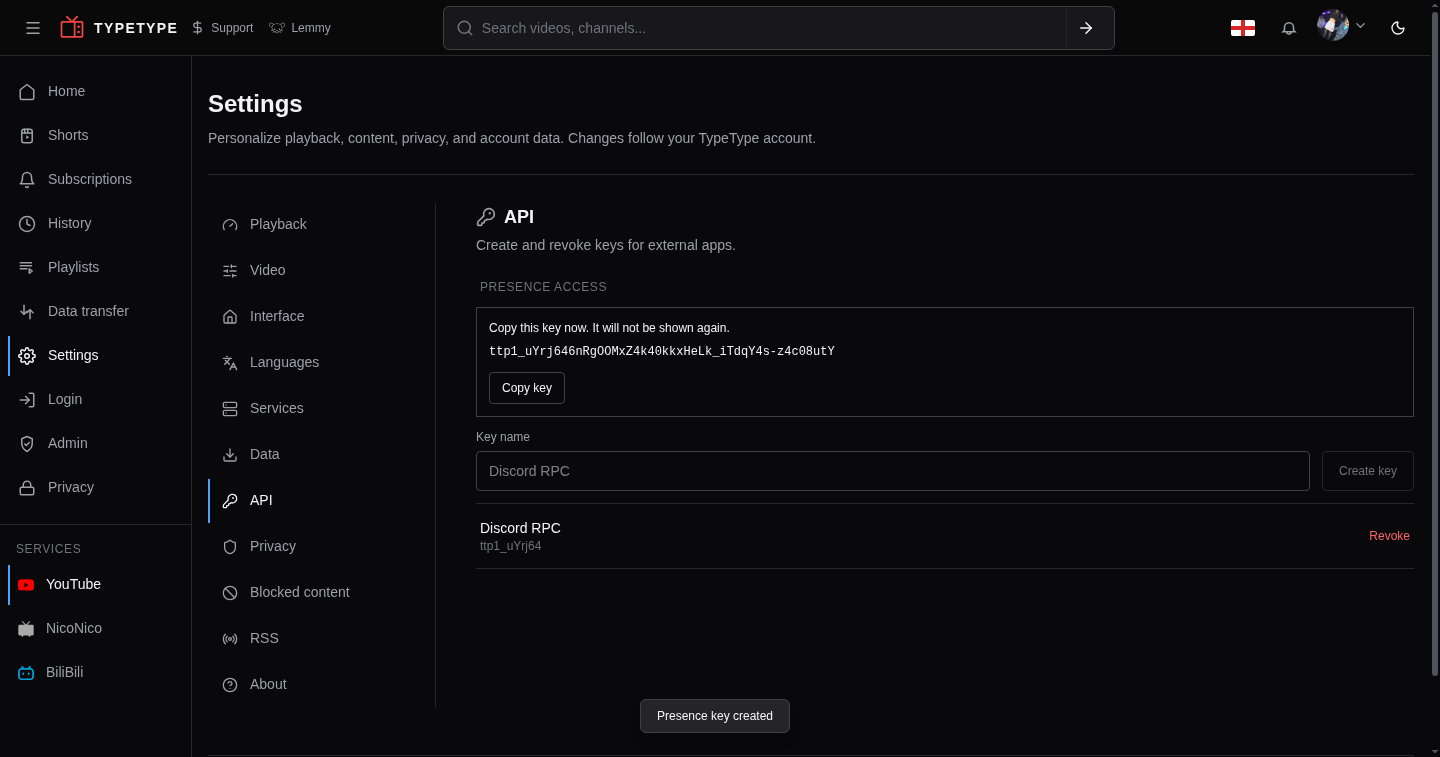
You can have up to 10 active keys at once. Revoke one any time from the same screen, independently of your login sessions.
Connect TypeType RPC
- Install and open TypeType RPC.
- Click the tray icon, then Settings….
- Enter your instance's URL and the key you just created, then Save.
- Turn on Share on Discord.
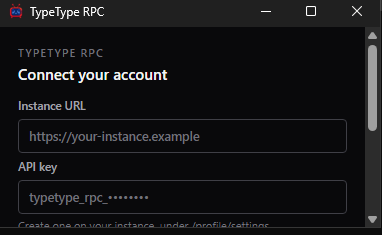
Sharing resumes automatically the next time you open the app, so this is a one-time setup.
What it can see
The key's scope is presence:read, read-only and narrow: what's playing, its title, channel, and position, nothing else. It can't see your history, subscriptions, account details, or session, and TypeType RPC only polls while its own toggle is on.
Troubleshooting
- Nothing shows up in Discord: Rich Presence buttons and the activity card are invisible on your own profile, that's a Discord limitation, not a bug. Ask a friend to check, or look at your profile from a second account.
- The app can't connect: TypeType RPC talks to Discord over a local connection, so Discord (or Vesktop) needs to be running on the same machine first.