
Watching & the player
Open any video to land on the watch page: the player, the details, related videos, and comments.
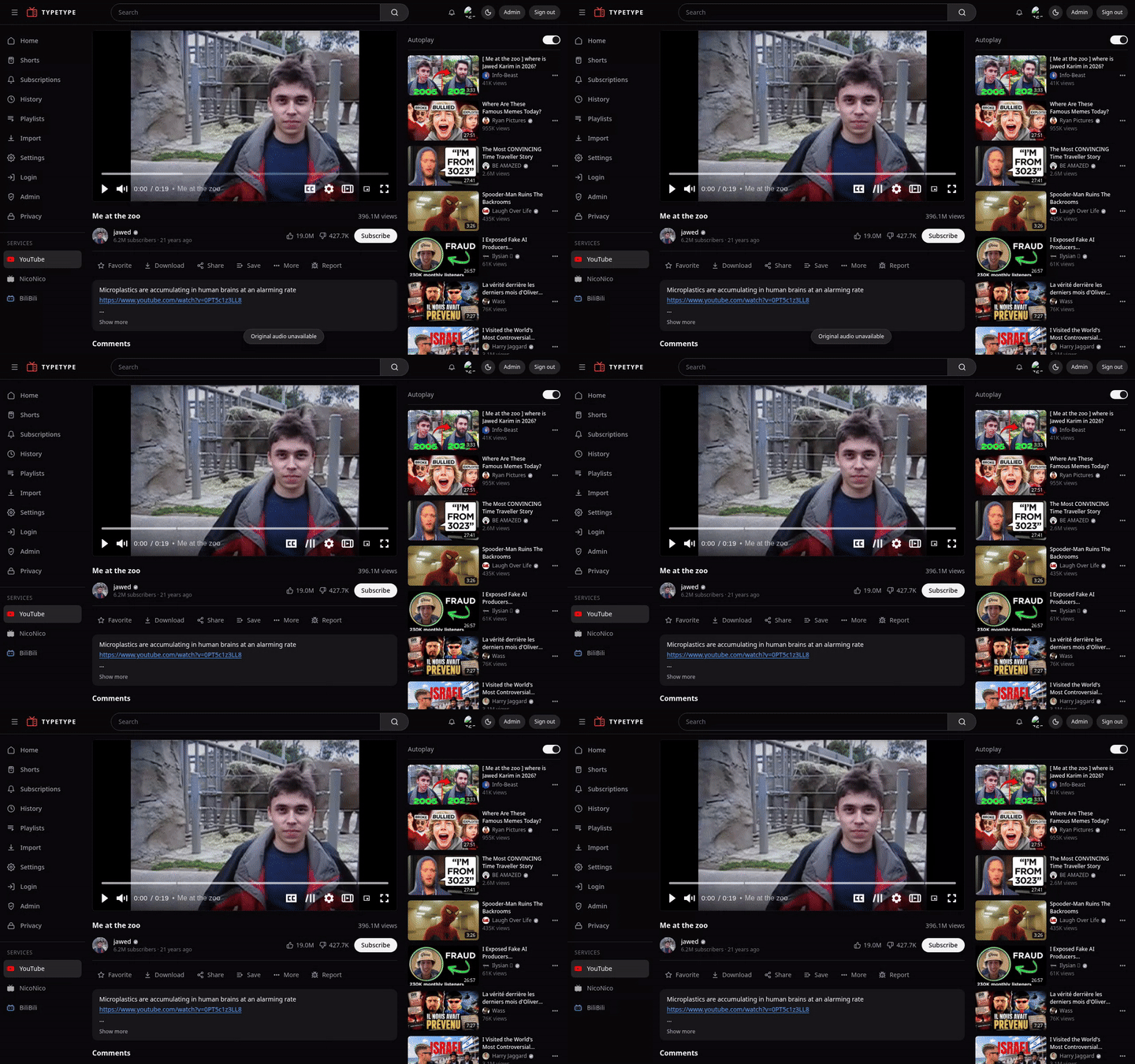
Player controls
The player has the usual controls (play and pause, seek, volume, fullscreen) plus a settings menu where you choose:
- Quality, pick a resolution, or let it adapt. A default can be set in Settings.
- Playback speed.
- Captions / subtitles, choose a track when the video has them.
- Audio track, switch language when several are available. A preferred audio language can be set in Settings.
The progress bar and controls use the player color chosen in Settings > Interface.
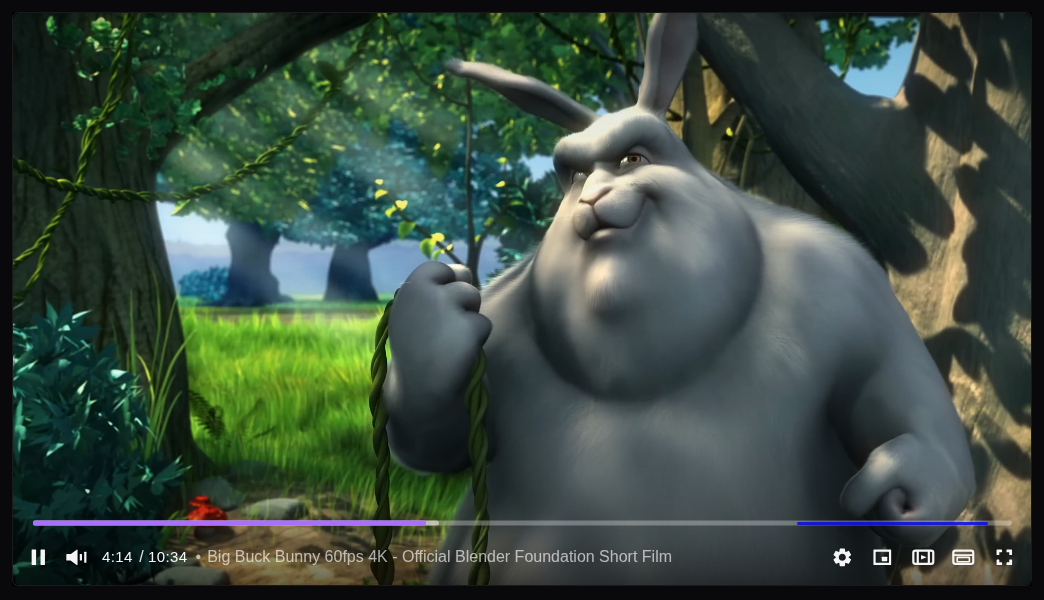
Audio only
Select Audio only under the video to load only the sound. The player shows the thumbnail and title instead of the picture, keeps the same controls, and still shows subtitles: turn them on with the CC button. Select Audio only again to bring the video back. To start every video this way, turn on Audio-only playback in Settings > Playback.
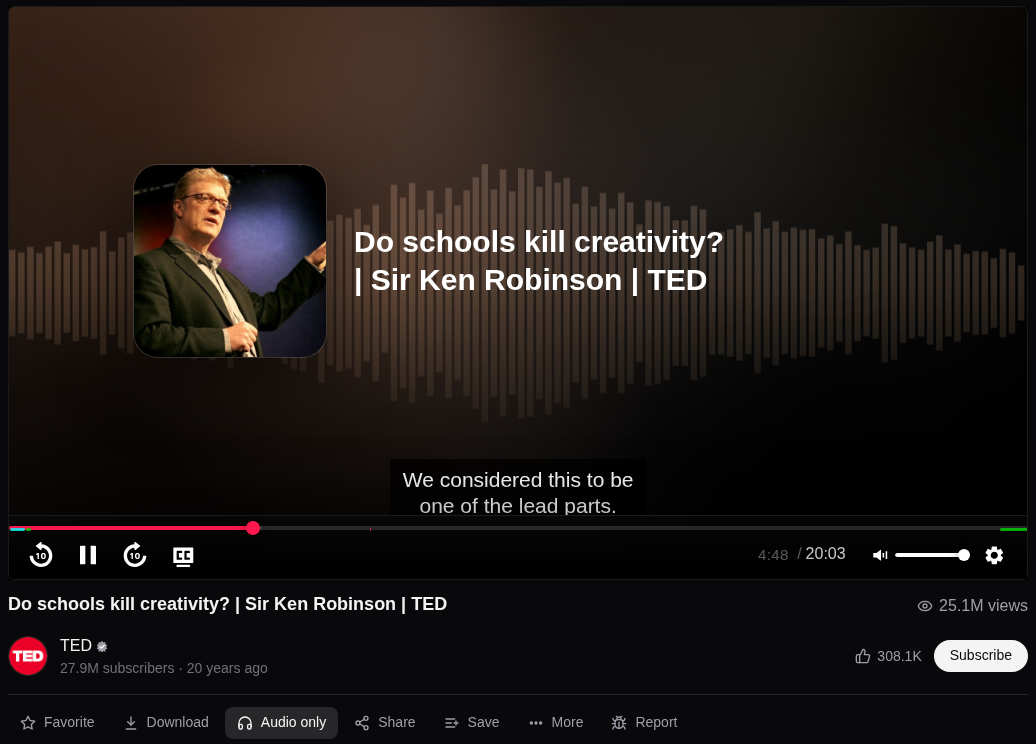
When you play a playlist, the playlist panel has its own Audio-only playback switch. It starts from your Playback setting and applies to that playlist only, so a music playlist can stay audio-only while other videos keep the picture.
Cinema mode and picture-in-picture
- Cinema mode widens the player and dims the page, for a focused, theatre-like view.
- Picture-in-picture pops the video out into a floating window so you can keep watching while you browse, using your browser's native picture-in-picture.
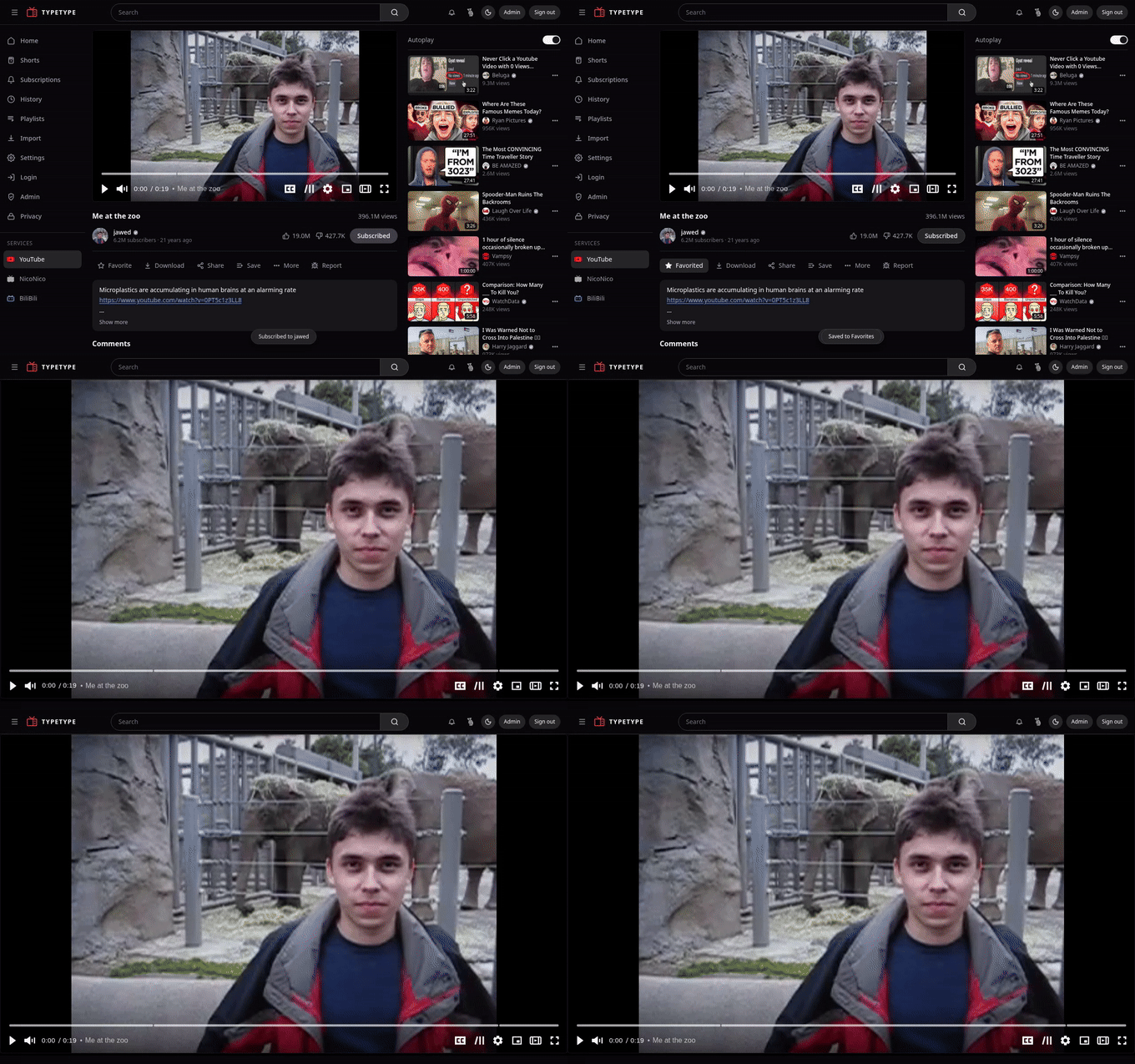
SponsorBlock
Community-marked segments (sponsors, self-promotion, and more) are shown on the seek bar and can be skipped or just marked automatically. You decide the behavior and which categories count, see Settings.
Keyboard shortcuts
The standard player keys are available:
| Key | Action |
|---|---|
k or Space | Play / pause |
f | Fullscreen |
m | Mute |
c | Captions on / off |
i | Picture-in-picture |
j or ← | Seek backward |
l or → | Seek forward |
↑ / ↓ | Volume up / down |
On top of those, TypeType adds:
| Key | Action |
|---|---|
Space (hold) | Fast-forward while held, release to resume |
, | Step one frame back (while paused) |
. | Step one frame forward (while paused) |
Touch gestures
On a touch screen:
- Drag left or right across the video to scrub through it.
- Press and hold the video to fast-forward.
Autoplay
When enabled, the next video starts automatically when the current one ends. Toggle it in Settings.
When the server is busy
If YouTube limits the instance, the player shows The video service is busy. Retrying… and tries again after the delay the server asks for. If the service stays unavailable, the message asks you to try again in a moment.
Livestreams
YouTube livestreams use TypeType's native SABR player. The player follows the live edge automatically, keeps buffering ahead during short network interruptions, and allows seeking within the DVR window when the stream provides one.
Embedded player
TypeType provides a dedicated route for embedding YouTube videos. See Embedded player for the URL format, parameters, iframe markup, and guest access requirements.
Shorts
Shorts play in a dedicated vertical, swipeable player. You can turn the Shorts surface off entirely in Settings.