
Importing your data
Once your instance is running and your account is created, you can bring your existing subscriptions, playlists, and history in. TypeType imports from two sources: a Google Takeout export, or a PipePipe backup.
You will find this on the onboarding screen right after sign-up, and any time later under Import in the sidebar.
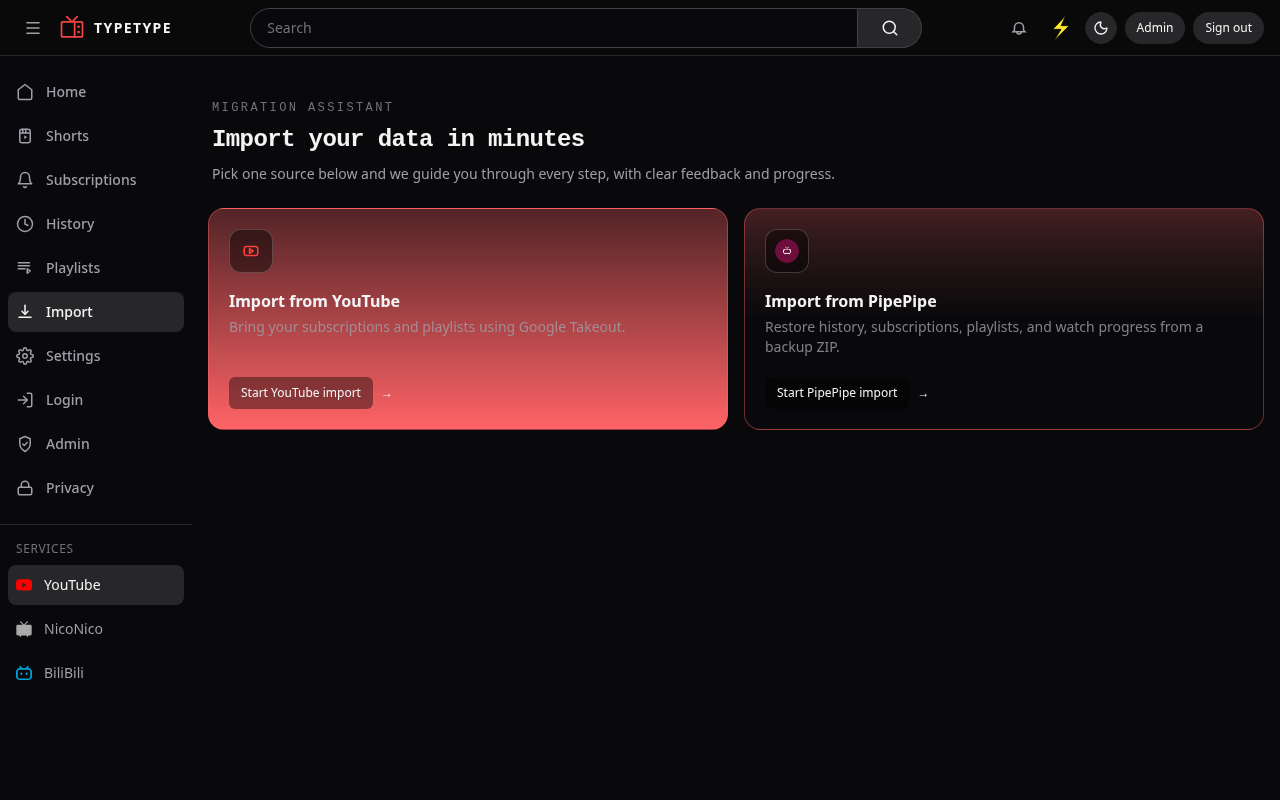
From YouTube (Google Takeout)
This brings in your subscriptions, playlists, favorites, and watch history (history and favorites only if the export includes the corresponding My Activity records).
- Request a Google Takeout export of YouTube and YouTube Music, and add My Activity too if you want your watch history. The app gives you a one-click link that pre-selects the right products for you.
- Wait for Google to prepare it, then download the ZIP file(s). Large exports are split into several ZIPs, that is fine.
- On the import screen, choose Import from YouTube and drop one or more Takeout ZIP files (you can select several at once).
- Start the import, then check your subscriptions and playlists.
Import progress stays at zero
If the preview succeeds but an import remains at 00 categories with no progress, save the job identifier and the preview counts before cancelling it. This behavior is tracked in issue #276; it is different from a Takeout file that failed detection. Do not include the archive or any account data in a report.
TIP
No need to unzip anything, upload the Takeout ZIPs exactly as Google gives them to you.
When you select several archives, the Frontend processes and commits them one at a time. Each import removes duplicate subscriptions, playlists, and video URLs; reuses an existing playlist when its source mapping or name already matches; and reports existing entries as skipped. A later archive therefore skips data already committed by an earlier one. YouTube's system playlists are mapped to TypeType Favorites and Watch later instead of appearing as duplicate ordinary playlists.
Liked-video activity can also restore Favorites when the system playlist is missing or incomplete. The importer keeps the original activity time, understands the English and French Takeout date formats, and ignores deleted, private, or unavailable liked-video records. This preserves the source order instead of assigning import-time timestamps in reverse.
Older or unavailable Takeout rows can contain only fallback metadata. The playlist opens immediately and Server schedules metadata repair in the background rather than blocking the whole response while it resolves every item.
These details were reviewed after lelam183 reported slow, reversed, and duplicate imported playlists.
From PipePipe
Coming from the PipePipe app? Restore straight from its backup.
- Export a backup from PipePipe (a
.zipfile). - On the import screen, choose Import from PipePipe and drop the backup ZIP.
- This restores your history, subscriptions, playlists, and watch progress.
After importing
When the import finishes, it shows a short report of what was brought in and anything that was skipped, so you can see exactly what happened. Your subscriptions and playlists are available right away.